Playwright MCP Browser Setup
Each project workspace configures its own Playwright MCP browser sessions in a .mcp.json file at the project root. The Nextcloud workspace uses 7 browsers; other workspaces may use fewer depending on the parallelism their tests demand. An example .mcp.json with the 7-browser configuration is available as a starting point.
Browser Pool (Nextcloud workspace)
| Server | Mode | Purpose |
|---|---|---|
browser-1 | Headless | Main agent (default) |
browser-2 | Headless | Sub-agent / parallel |
browser-3 | Headless | Sub-agent / parallel |
browser-4 | Headless | Sub-agent / parallel |
browser-5 | Headless | Sub-agent / parallel |
browser-6 | Headed | User observation (visible window) |
browser-7 | Headless | Sub-agent / parallel |
VS Code Extension Setup
The VS Code extension loads MCP servers from .mcp.json in the project root (this file lives in each project repo, not in the .github documentation repo). The file defines 7 browser instances. Browsers 1–5 and 7 are headless; browser-6 is headed (omits --headless) so the browser window is visible when you want to watch:
{
  "mcpServers": {
    "browser-1": {
      "command": "npx",
      "args": [
        "-y",
        "@playwright/mcp@latest",
        "--browser",
        "chromium",
        "--headless",
        "--isolated"
      ]
    },
    "browser-2": {
      "command": "npx",
      "args": [
        "-y",
        "@playwright/mcp@latest",
        "--browser",
        "chromium",
        "--headless",
        "--isolated"
      ]
    },
    "browser-3": {
      "command": "npx",
      "args": [
        "-y",
        "@playwright/mcp@latest",
        "--browser",
        "chromium",
        "--headless",
        "--isolated"
      ]
    },
    "browser-4": {
      "command": "npx",
      "args": [
        "-y",
        "@playwright/mcp@latest",
        "--browser",
        "chromium",
        "--headless",
        "--isolated"
      ]
    },
    "browser-5": {
      "command": "npx",
      "args": [
        "-y",
        "@playwright/mcp@latest",
        "--browser",
        "chromium",
        "--headless",
        "--isolated"
      ]
    },
    "browser-6": {
      "command": "npx",
      "args": [
        "-y",
        "@playwright/mcp@latest",
        "--browser",
        "chromium",
        "--isolated"
      ]
    },
    "browser-7": {
      "command": "npx",
      "args": [
        "-y",
        "@playwright/mcp@latest",
        "--browser",
        "chromium",
        "--headless",
        "--isolated"
      ]
    }
  }
}
The project's shared .claude/settings.json has two pre-approval entries:
"enableAllProjectMcpServers": true— auto-approves all servers from.mcp.jsonwithout prompting on each reload.- All
mcp__browser-*tool calls — pre-approved for all 7 browsers so that parallel sub-agents (used by/test-appFull mode and/test-counsel) can use their assigned browser without needing an interactive permission prompt. Without this, background agents are silently denied and no testing occurs.
Then reload the VS Code window: Ctrl+Shift+P → type reload window → Enter.
Verification
After reload, open the MCP servers panel to verify all 7 browsers show Connected. You can do this two ways:
- Type
/MCP serversin the Claude Code chat input - Or
Ctrl+Shift+P→ search "MCP servers"
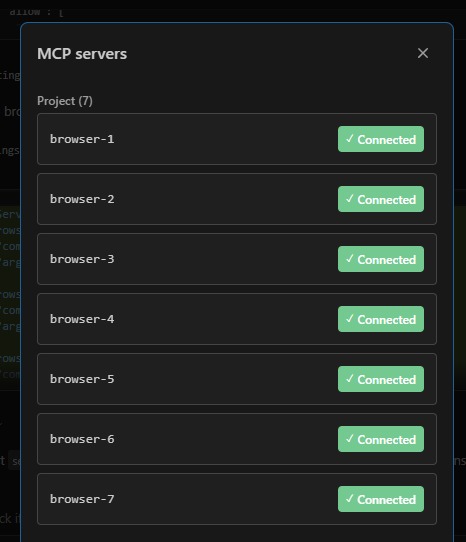
If any server shows an error, check the output panel: Ctrl+Shift+P → "Output: Focus on Output" → select "Claude VSCode" from the dropdown.
CLI Alternative (terminal only)
For the Claude Code CLI (claude terminal command, not VS Code), you can start servers as HTTP endpoints on fixed ports and reference them via URL:
# Start headless browsers
for port in 9221 9222 9223 9224 9225 9227; do
  npx -y @playwright/mcp@latest --headless --isolated --port $port &
done

# Start headed browser
npx -y @playwright/mcp@latest --isolated --port 9226 &
This is not needed for VS Code — the extension manages server processes automatically via
.mcp.json. Only use this approach if you're runningclaudefrom the terminal without VS Code.
Usage Rules
- Default: Use
browser-1for normal work - Parallel agents: Assign sub-agents
browser-2throughbrowser-5andbrowser-7 - User watching: Switch to
browser-6when the user wants to observe - Fallback: If a browser errors, try the next numbered browser
- Keep
browser-6reserved: Only for explicit user observation